What a CMS migration is
In a CMS migration, an existing website moves to a different content management system or to a new generation of its current one. Content, media, page structure, functionality and SEO signals such as URLs and metadata move with it, while the structure and message of the website essentially stay the same.
Many people underestimate the second case. A WordPress site that has been stuck for years on an old page builder, an abandoned theme or an outdated PHP version can rarely be updated with a click. The theme, components and plugins are rebuilt, and the content moves into the new structure. The process resembles a system switch, and often the URLs even stay the same.
The trigger almost always comes from day-to-day work. An update takes days instead of minutes, a new page type needs a developer, an extension stops getting security updates. That applies to TYPO3 with a deeply grown page tree just as much as to Contao or Joomla full of extensions. This CMS migration checklist lists the tasks in the order they come up: from the inventory to the checks after go-live. Which legacy systems we replace and how a project runs with us is shown on the page Website migration.
At a glance
- In a migration, structure and content move to a new system or a new system generation. A relaunch plans both from scratch.
- It starts with a complete inventory of all content, URLs, functionality and integrations.
- A script moves most of the content. Custom components and extensions of the legacy system take manual work.
- Every relevant old URL gets a 301 redirect to its new counterpart. Google recommends keeping redirects in place for at least one year.
- Whatever is created in the legacy system during the project moves to the new system by the cutover date.
How much should change in the migration
In a migration, you replace the technology under the website while page structure and content essentially remain. In a relaunch, you plan structure, content and design anew, often together with the CMS. Budget and timeline depend on this choice, so make it first.
Many projects sit in between. The system changes, outdated pages are merged, and the design gets a careful polish. Define this scope before you start. Turning a migration into a relaunch along the way shifts timeline and budget. How a complete rebuild works is described on the page Website relaunch with WordPress.
Inventory before the CMS migration
Every task in the migration builds on the inventory, for a WordPress website an audit before the relaunch. It defines what moves and provides the basis for timeline, quote and mapping.
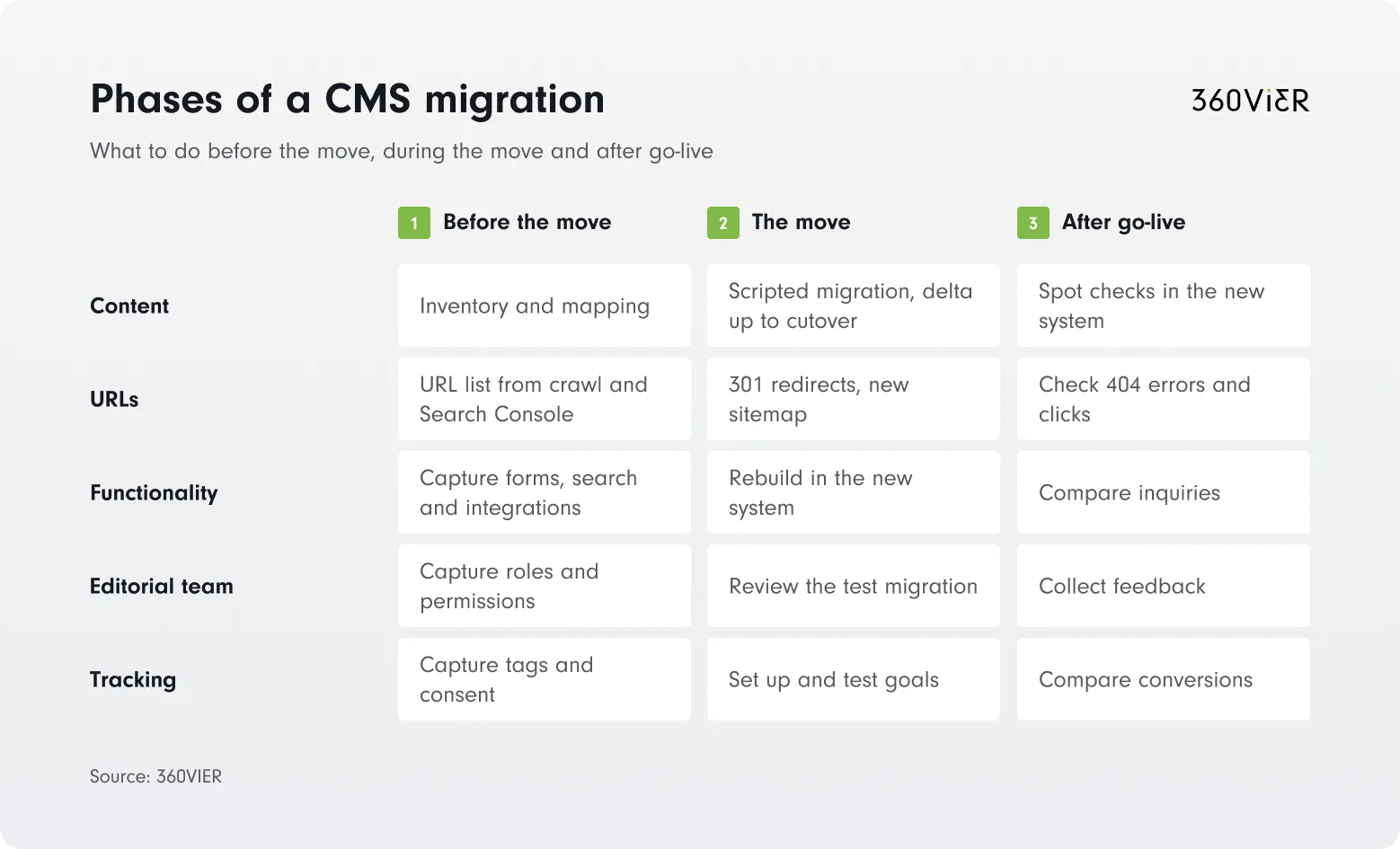
For URLs, a crawl alone is rarely enough. Addresses that are only reachable through backlinks or old campaigns are missing from the menu and only show up in the XML sitemap and Search Console. Record clicks, impressions and referring domains for each address. That way it is clear later which redirects take priority.
Integrations are easy to overlook because they work invisibly in the frontend. A form sends inquiries to the CRM, product data comes from the PIM, job ads from Personio. Record the data direction, frequency and contact person for each integration. How we set up such integrations in the new system is described on the page API integrations.
For functionality, talking to the business departments helps more than any tool. In our projects, the first list often lacks a calculator, a protected download area or a form with an approval step.
The inventory also shows what can be dropped in the move. Pages without views, without backlinks and without a business purpose can be merged or removed. The business department makes this decision together with the project team.
Which CMS fits after the switch
Which system fits depends mainly on the editorial team, the data model and integrations. Feature comparisons help with the shortlist. The decision comes after the inventory: only then does it become clear which page types, permissions and integrations the new system has to support.
- WordPress, if your editorial team builds many pages itself and you want a widely used system with many developers on the market.
- Headless WordPress, if loading time and security matter most and the editorial team should stay in its familiar editor.
- Payload CMS, if custom data types, fine-grained permissions or many integrations go beyond a classic CMS.
- HubSpot CMS, if marketing and sales work with HubSpot and the website, forms and CRM should live in one system.
Sometimes the current system is also the right target, just in an up-to-date form. That pays off when the editorial workflow and data model fit and mainly the theme, components and extensions are outdated. An older WordPress site then becomes a modern WordPress site with the block editor and a cleaned-up set of plugins. Which switch is typical for which legacy system is shown in our website migration overview.
Our CMS comparison gives an overview of the common open source systems. When a decoupled frontend pays off is explained in the article on Headless WordPress.
What a script moves and what takes manual work
In the new CMS, every page type gets a fixed content model: which fields it has, which components the editorial team may use and how it links to other content. The mapping defines which field from the legacy system ends up in which field of the new system. Most of the project effort depends on the mapping.
Text, images, documents and metadata can usually be moved by script. Effort arises where content in the legacy system sits in custom components or extensions. Typical cases by source system:
| Legacy system | Typical special cases |
|---|---|
| TYPO3 | deeply nested page trees, content elements from extensions, language versions with their own translation rules |
| Contao | modules and extensions for forms, news or calendars that need a replacement in the target system |
| Joomla | third-party components and modules, categories as page structure |
| WordPress | content in page builders such as Elementor, shortcodes, plugins with their own data formats |
| Sitecore | personalization, internal search and the permission concept of the digital experience platform, which need a deliberate review |
Before the full migration, a test migration with samples of every page type is worth it. It shows early where the script needs refining and how many pages need manual work. Lernstudio Barbarossa shows how large such inventories get: we reorganized more than 22,000 subpages there.
Protecting rankings with redirects when switching CMS
If addresses change when you switch CMS, every relevant old URL needs a permanent redirect with status code 301 to its matching counterpart. Blanket redirects to the homepage send visitors to the wrong place and waste the signals of the old page.
Google describes the process in its guide to moving a site with URL changes: map old and new addresses, set up redirects, submit the new sitemap and monitor the move in Search Console. According to Google, the redirects should stay in place for at least one year.
- Create a mapping table with old URL, new URL, status code and priority
- Set up redirects with exactly one hop and avoid chains
- Carry titles, descriptions, canonicals and hreflang tags over to the new system
- Check structured data, for example for articles, FAQs and organization
- Mark deliberately removed pages with status code 410
Bringing over new content up to the cutover date
The new website is built in a staging environment that is blocked for search engines. There, the editorial team reviews the test migration before the actual move begins. The old website keeps running in the meantime. Your editorial team publishes new content there, and that content is easily lost on the cutover date.
This new and changed content is called the delta. It has to reach the new system by the cutover date so that all news and job ads are online on day one.
- Set the cutover date: in line with campaigns, trade fairs and editorial calendars.
- Capture the delta: everything that is created or changed in the legacy system after the test migration.
- Agree on a content freeze: a short period before go-live in which the editorial team pauses work in the legacy system.
- Allow indexing: the search engine block applies only to staging. Check before go-live that the live website may be indexed.
The CMS migration checklist to tick off
All points from this article, sorted by phase. Tick them off one by one in your own project.
Before the move

Define scope: migration or relaunch
Inventory of content, URLs, functionality and integrations
Choose the target system
Define the content model and mapping
Test migration with every page type
During the move
Set up redirects and metadata
Plan cutover date, delta and content freeze
Test forms, tracking and consent
Set up roles and permissions
Allow indexing of the live website
After go-live
Submit the sitemap in Search Console
Check status codes and 404 errors
Compare clicks and impressions
Compare inquiries and conversions
Collect feedback from the editorial team
Testing forms, tracking and consent before go-live
Falling rankings get noticed quickly after a migration. Missing inquiries often only surface weeks later. That is why forms and measurement belong on the checklist before the new website goes live.
- Submit every form once and check whether the inquiry arrives in the inbox or the CRM, for example through the integration with HubSpot or Salesforce
- Adapt conversion goals and events in the analytics tool to the new page structure
- Set up and test the consent banner and tag rules in the new system
- Check externally linked files, such as price lists or data sheets that partners link to
Getting the editorial team ready for the cutover date
A migration is only complete when the editorial team can work in the new system. The project team sets up roles, permissions and approval steps from the inventory in the new CMS before the first editors log in.
Our advice from past projects: bring the editorial team into the new system as early as the review of the test migration. Then they know the editor and components by the cutover date, and questions come up while the project team is still closely involved.
A system switch is also the right time to store content in a structured way. AI agents can then prepare texts later and save them as drafts, while approval stays with the editorial team. In WordPress, an MCP server controls which tools an agent may call. How agents work in a controlled way in companies is described on the page Agentic AI.
What to check in the first weeks after go-live
After the move, Google processes all addresses again, so short-term ranking fluctuations are part of it. During these weeks, check daily whether a drop hides a real error, such as a missing redirect.
- Submit the new XML sitemap in Search Console
- Check status codes, 404 errors and redirect chains daily until the new addresses are stable in the index
- Compare clicks and impressions of the most important pages with the values before the move
- Compare form submissions and conversions with the period before the move
- Collect feedback from the editorial team and fix small issues in batches
After that, the website moves into ongoing operations: updates, backups, security and further development within a fixed framework, as described on the page WordPress maintenance and support.
Frequently asked questions about CMS migration
How 360VIER supports CMS migrations
We migrate websites from TYPO3, Contao, Joomla and Sitecore to WordPress, Payload CMS or HubSpot CMS and bring older WordPress installations up to date. Every migration with us starts with an inventory and mapping, followed by a binding quote. Which systems we replace and how we approach it is shown on the page Website migration.

Talk to us about your CMS switch
Tell us which system your website runs on today and what it should be able to do in the future. Hans Mengler will tell you which path fits and how we plan it.